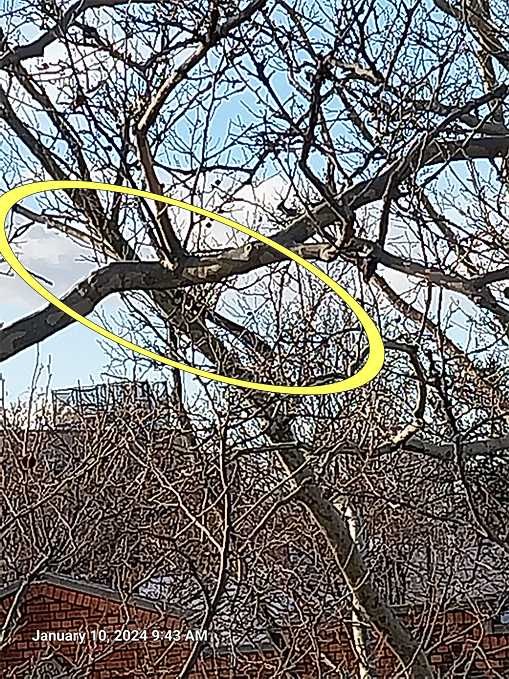
Slideshow
The Service Request Photos
About This Page
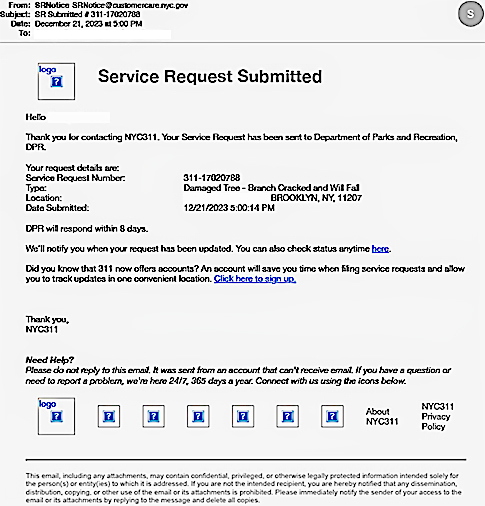
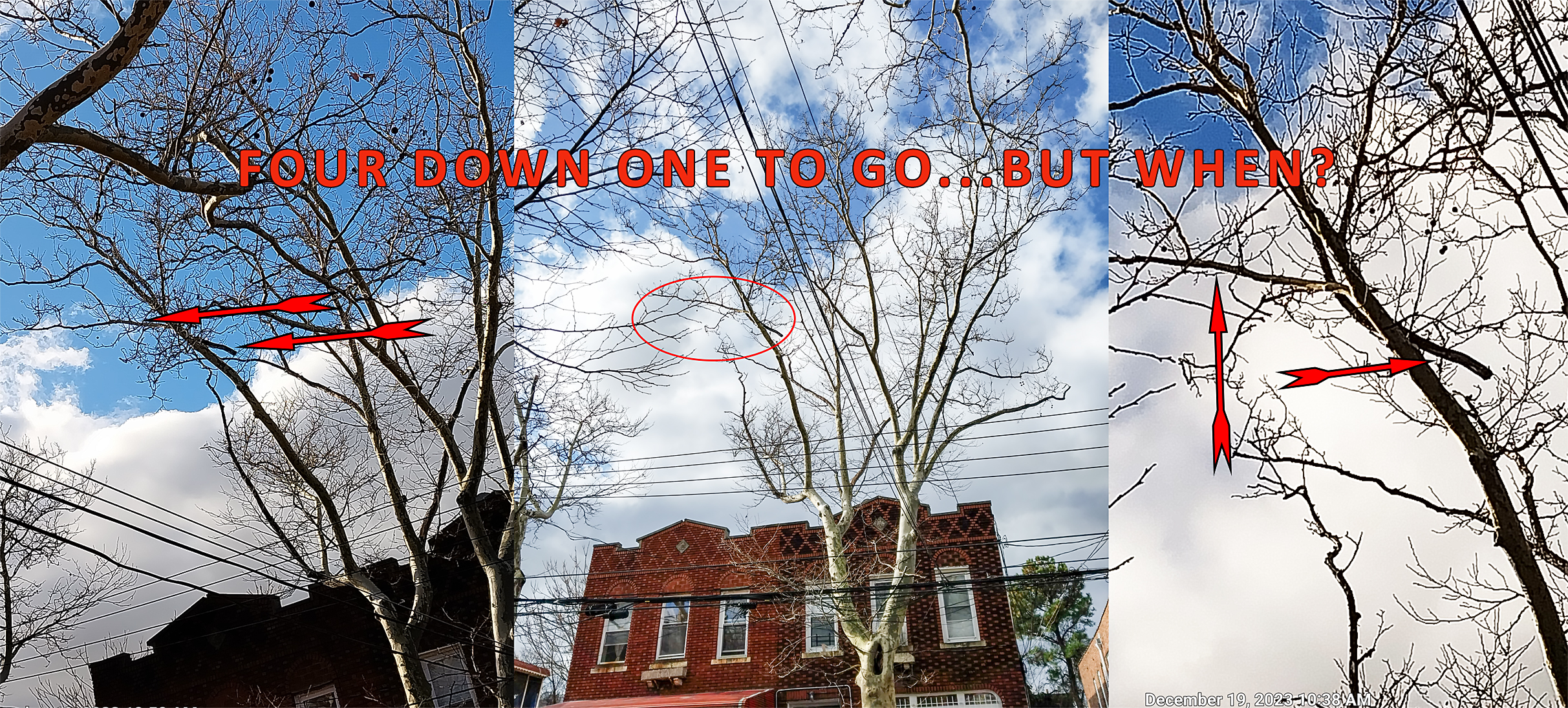
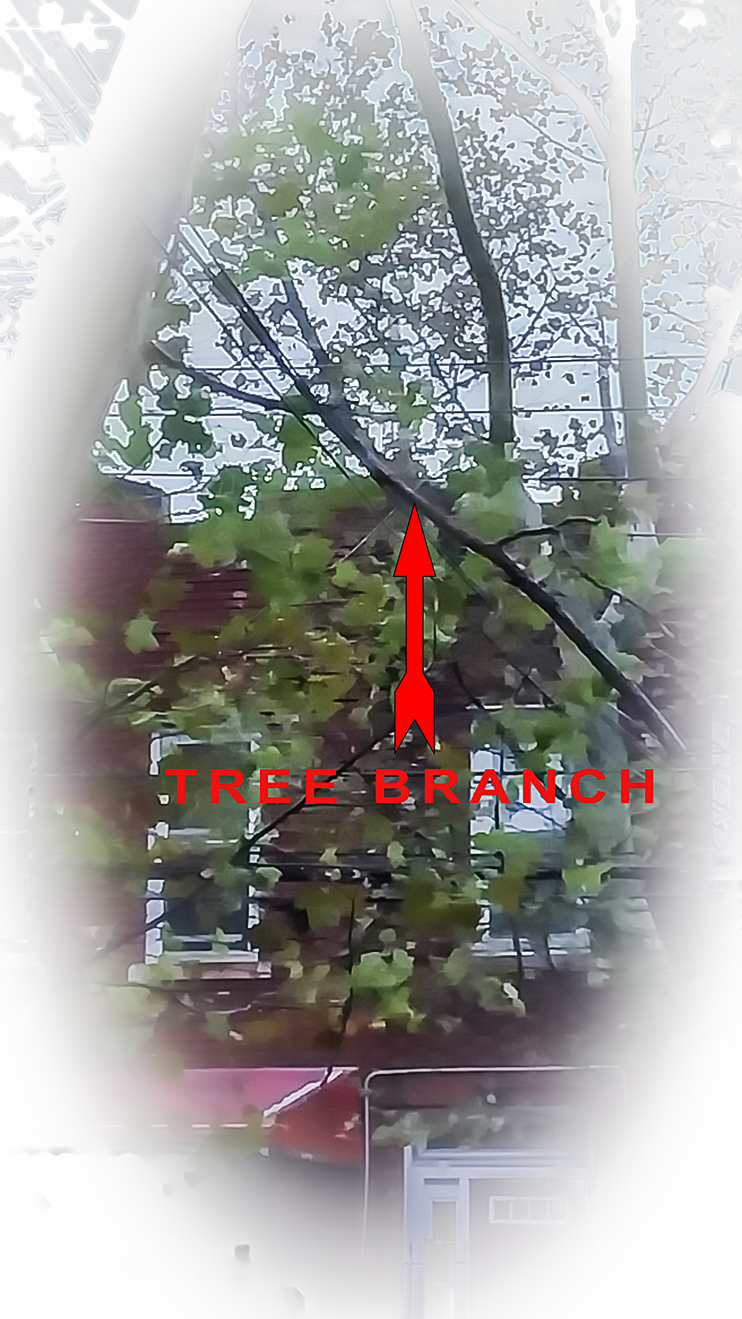
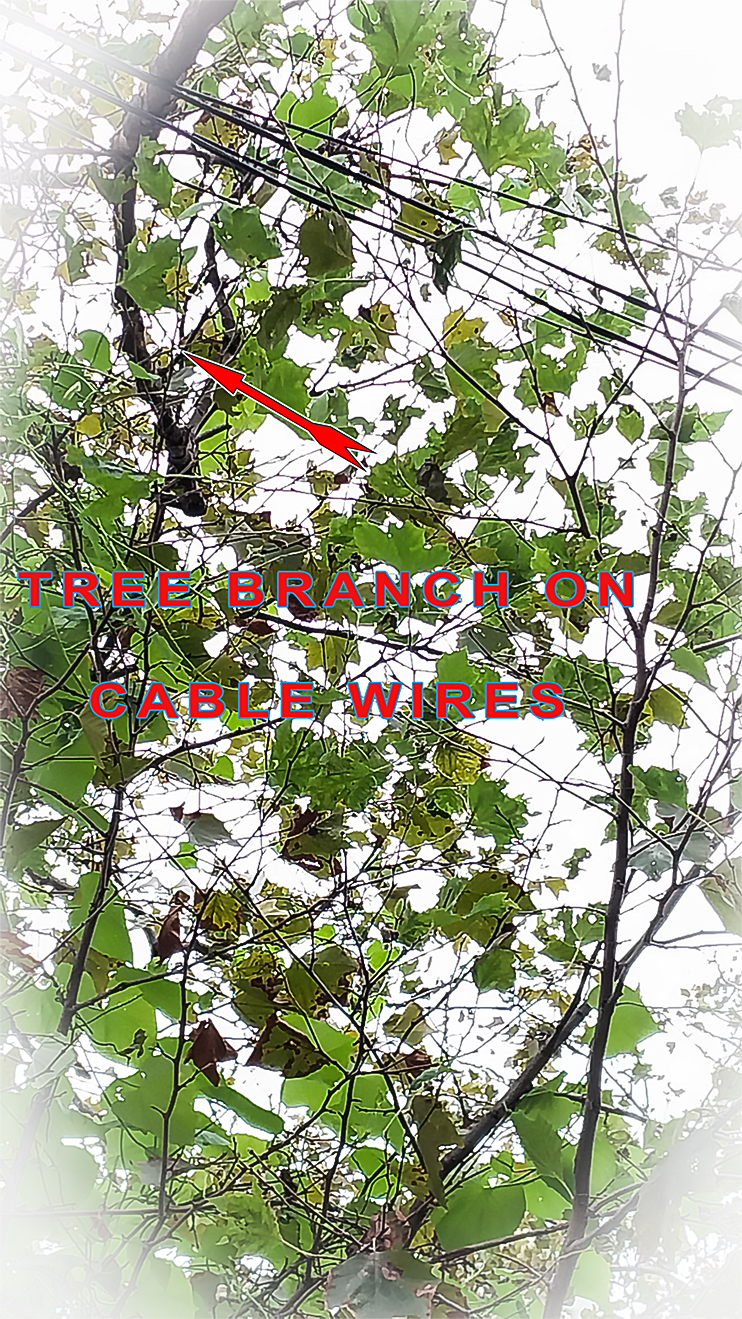
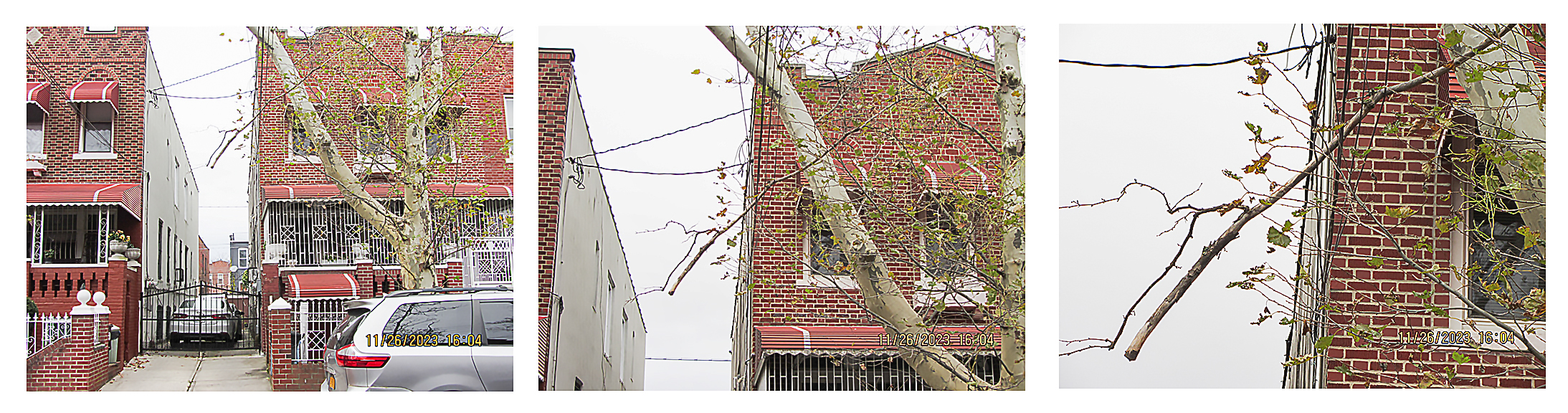
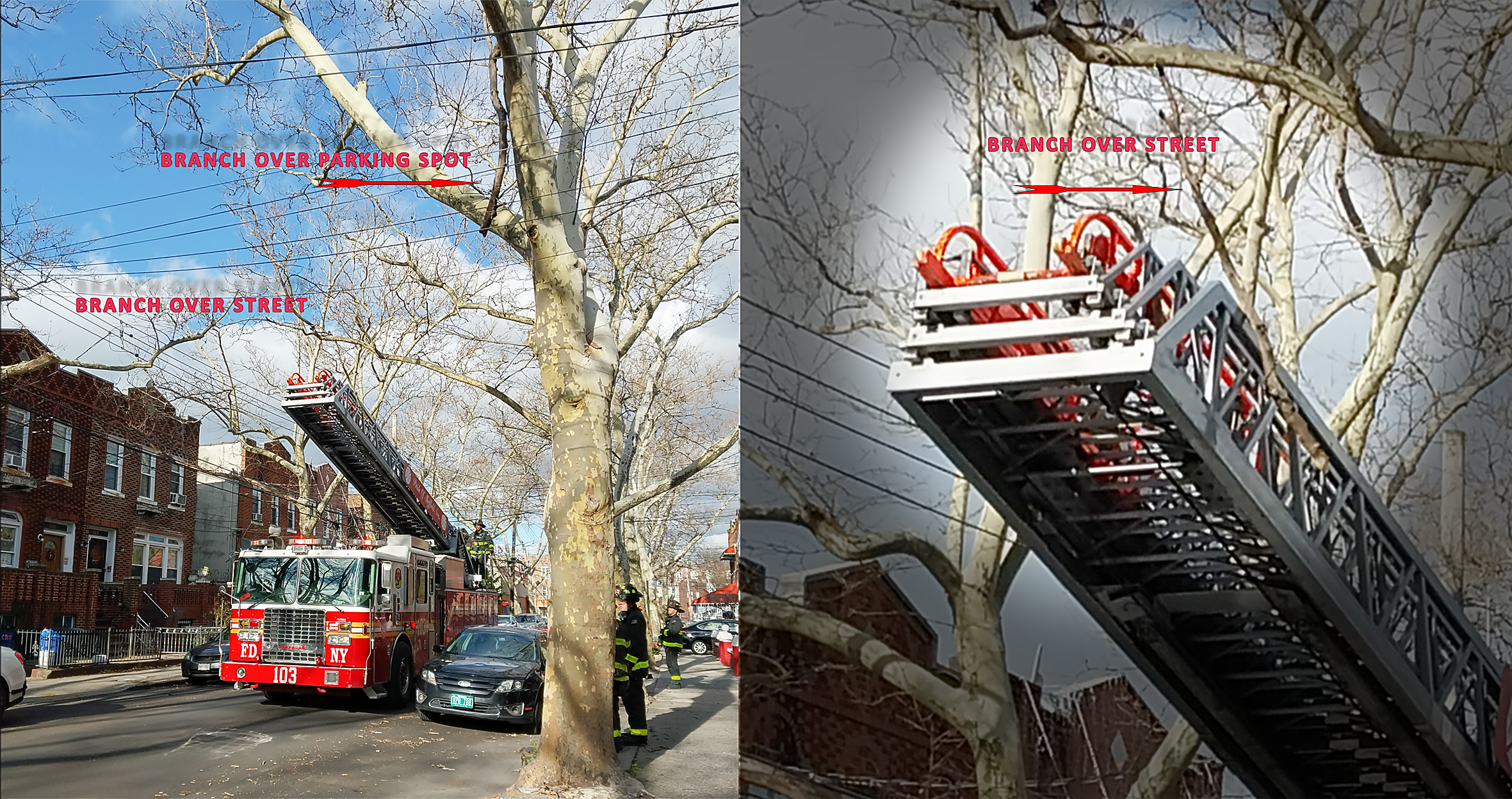
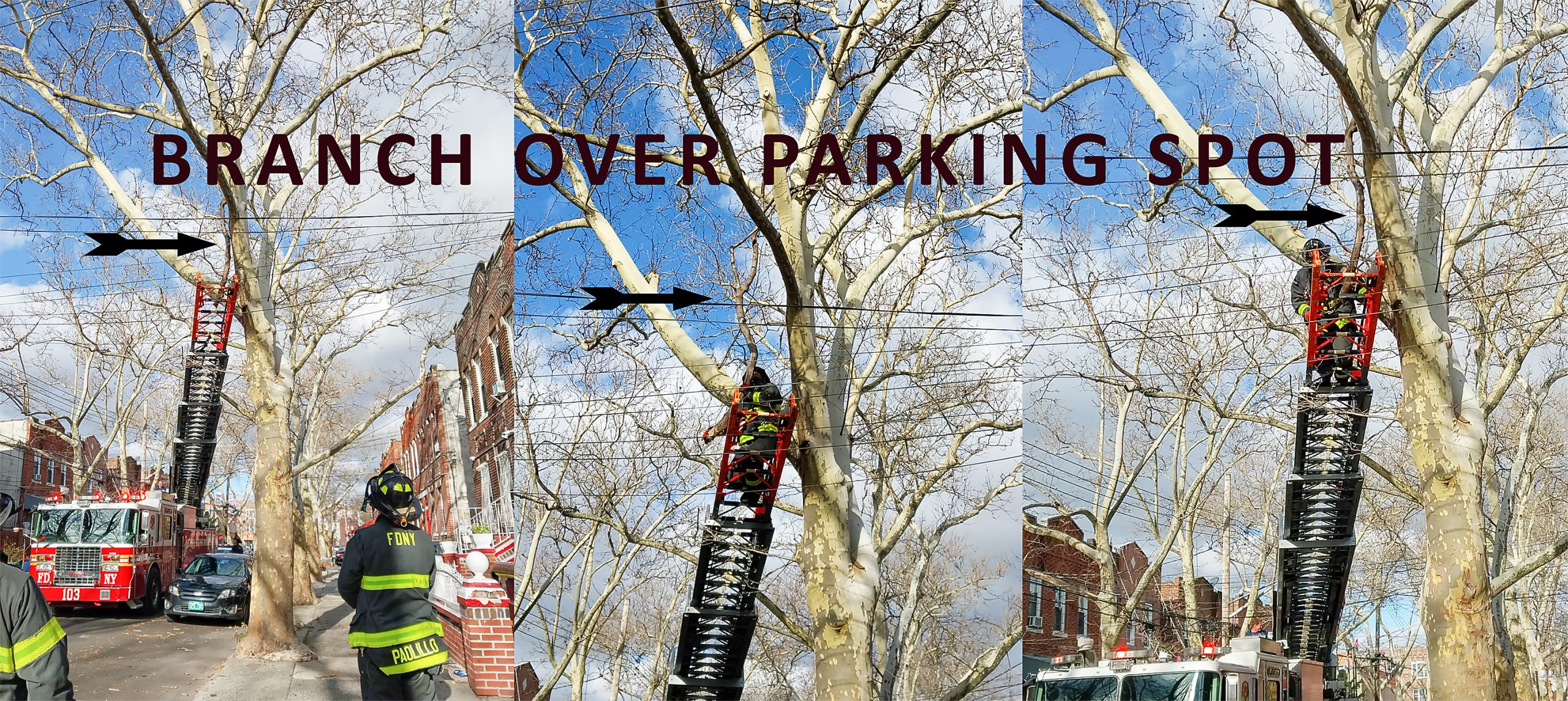
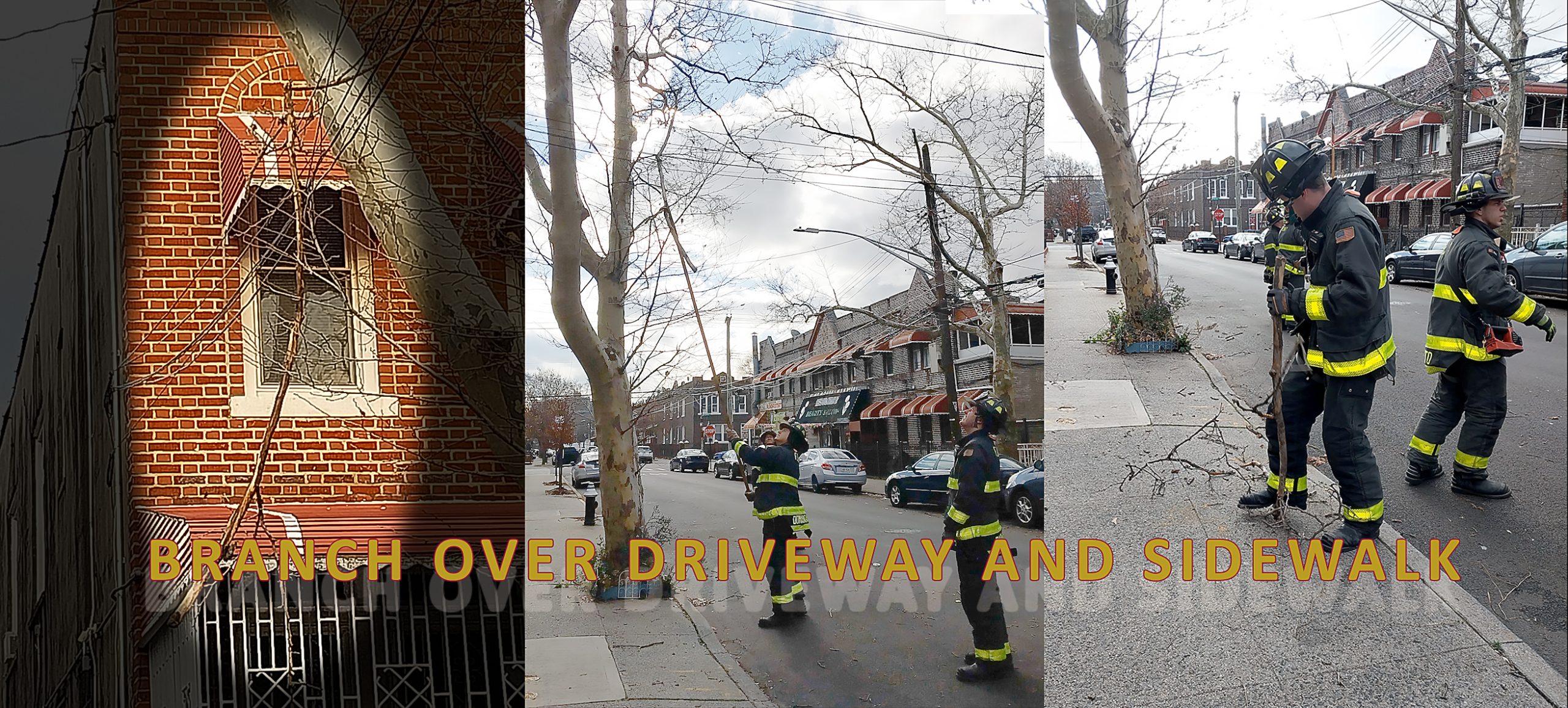
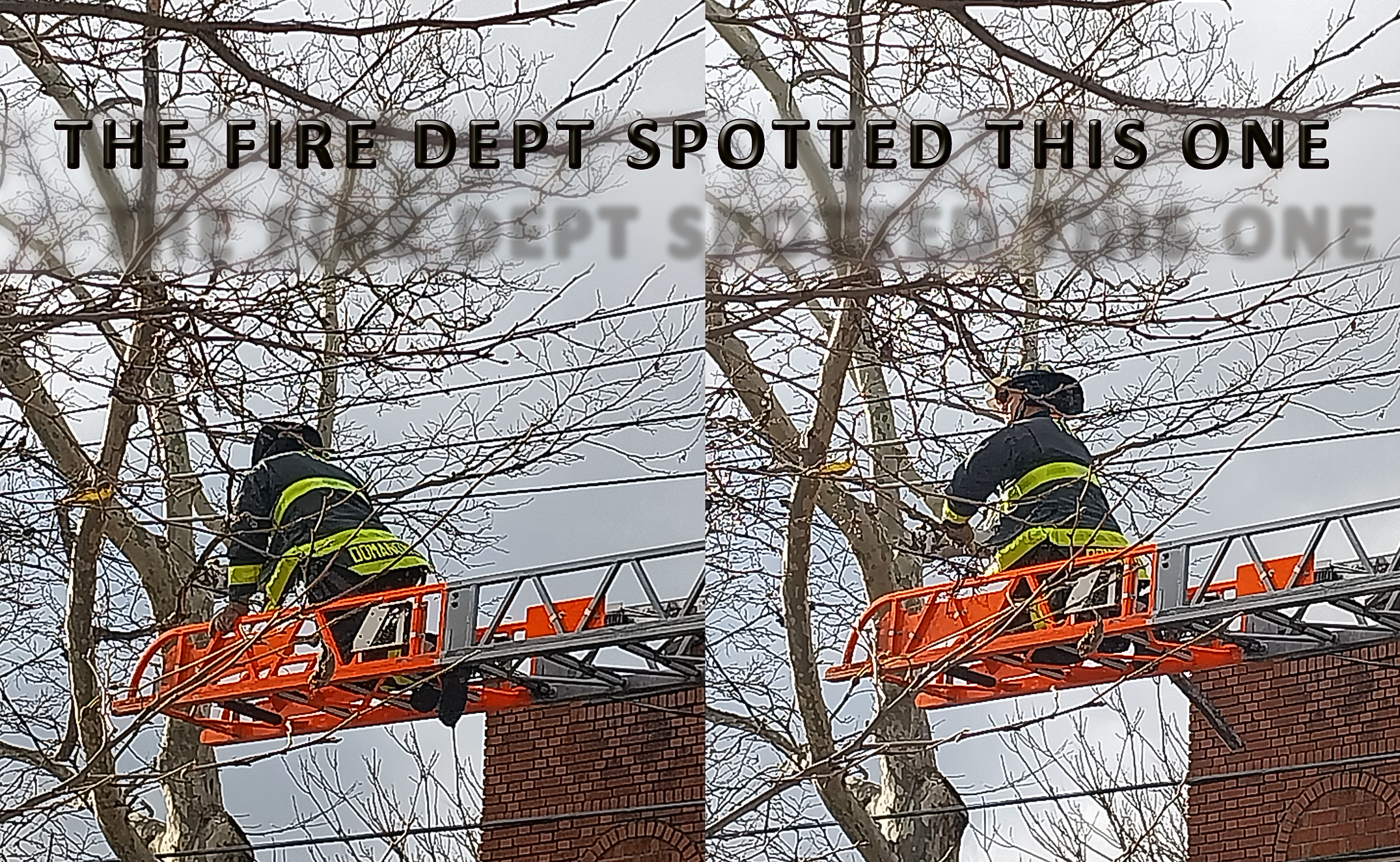
On this page are the photos submitted with the Service Request.
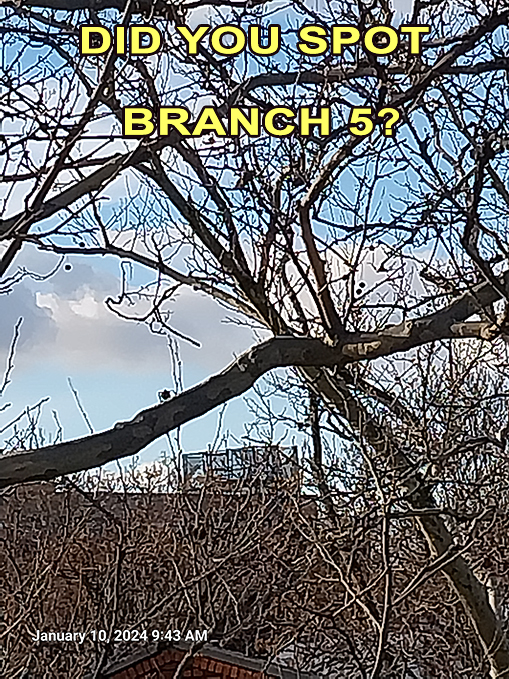
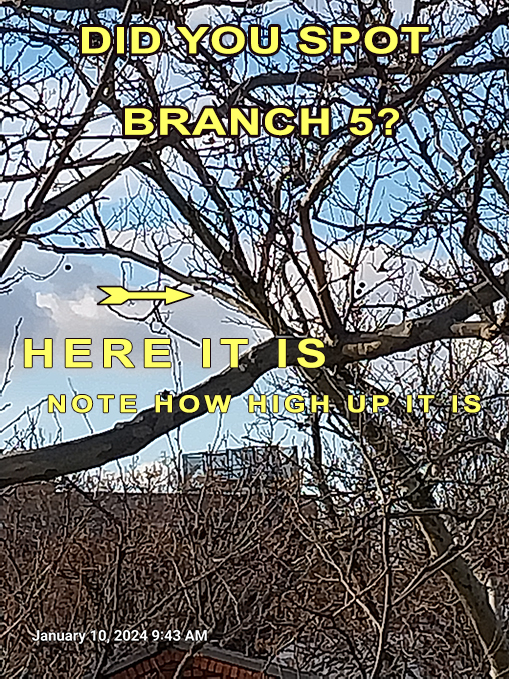
I have also included the screenshot of the Service Request for Branch 5 and the photos submitted with it.
As you scroll down the page, different carousels will appear. The instructions on using the carousels and the slideshow follow this panel. 🙂
Carousel Controls
To pause the carousel, hover your mouse over the images.
Click on an image to enter the slideshow mode.
There are several navigation controls in the slideshow.
Slideshow Controls
- Arrows on either side of the images move to the next or previous image.
- At the top right corner are the controls
- The expansion or Full window control. Click on it to move the image into full window mode. Click on it again to return to the slideshow.
- The Zoom Control allows you to enlarge the image. Click it a second time to return to Normal view.
- The curved arrow is the share button. Click on it to share or download the image. Note. The Twitter function does not work.
- The “X” icon will close the slideshow and return you to the gallery page.
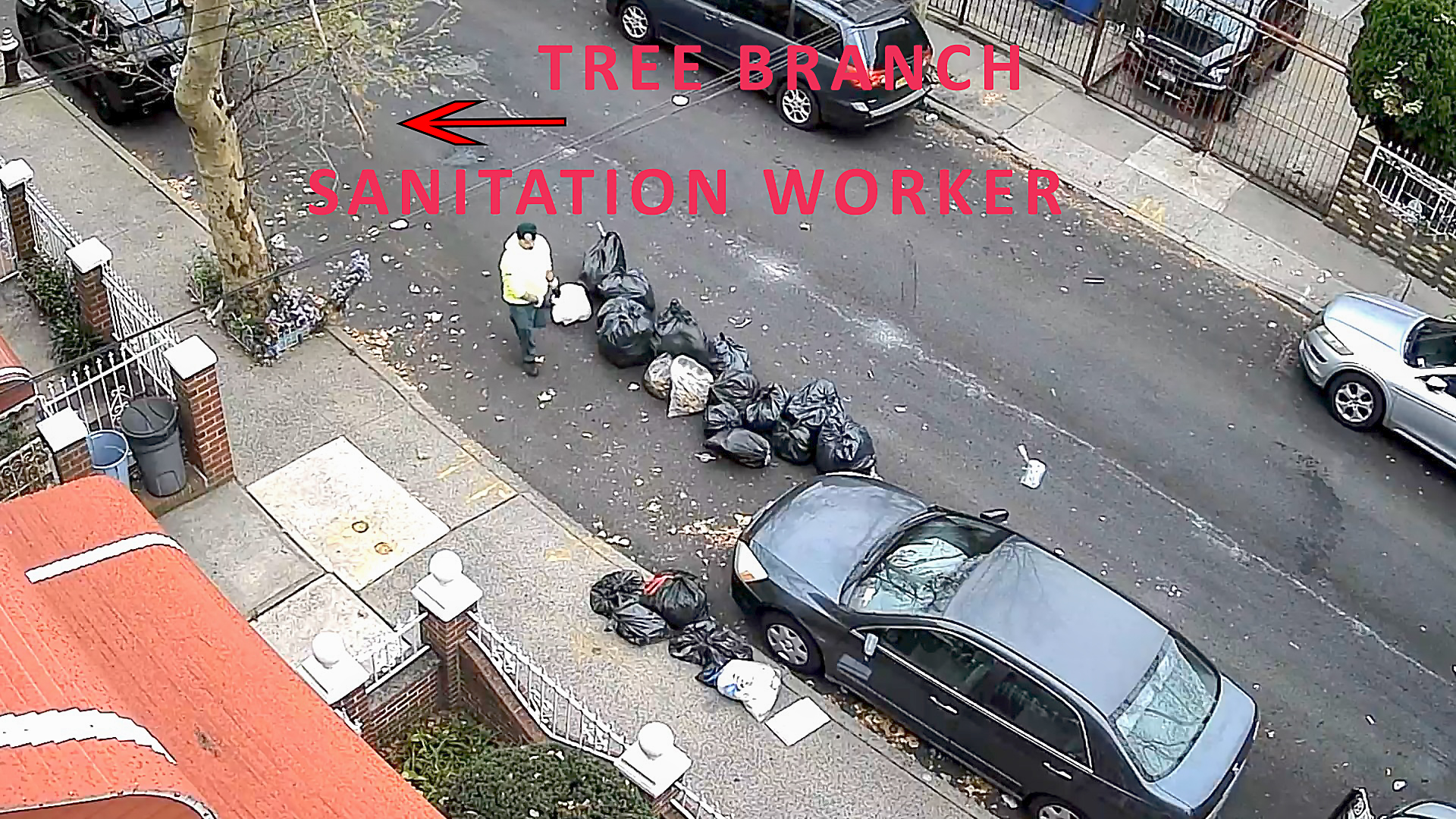
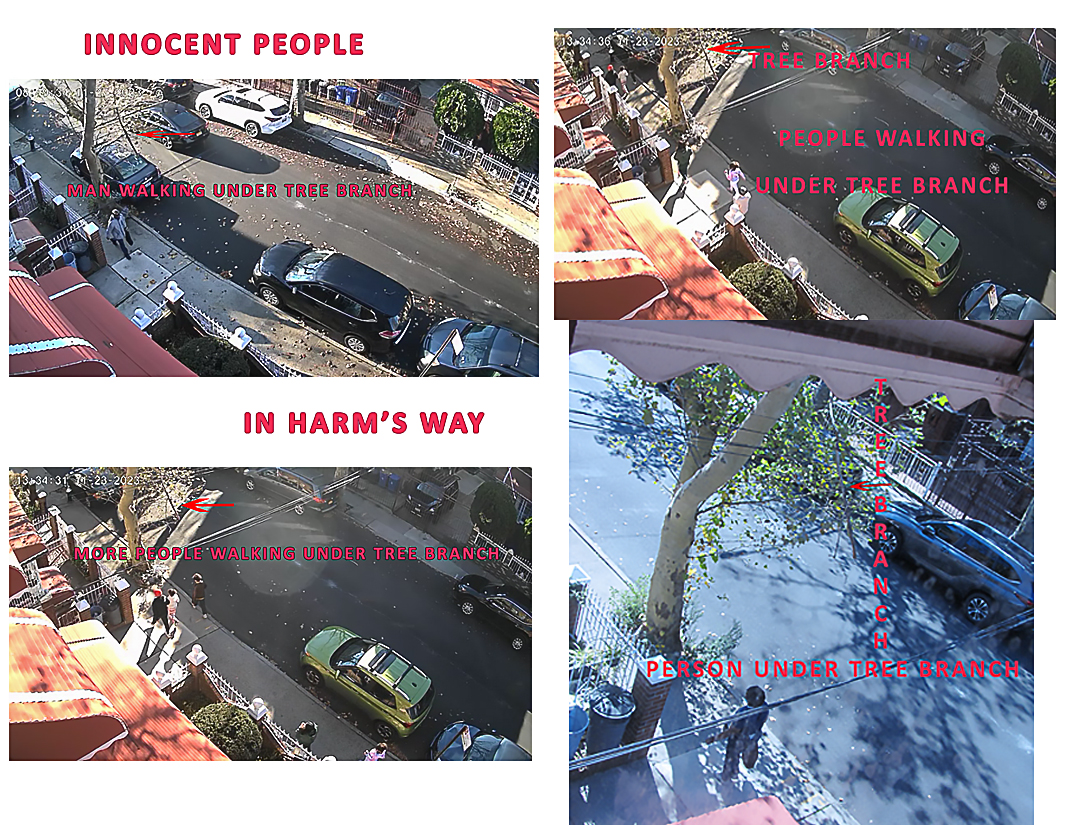
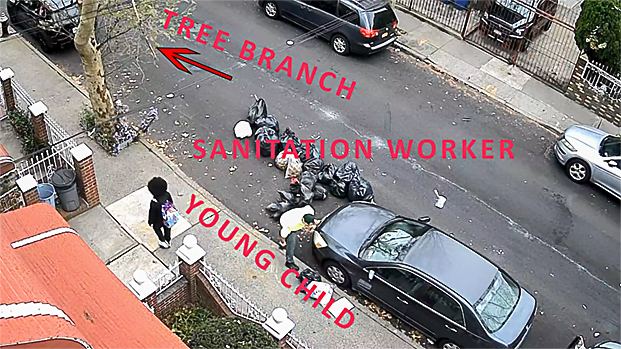
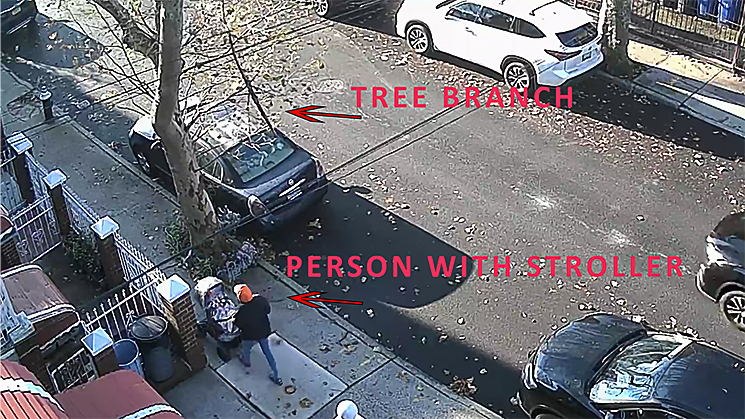
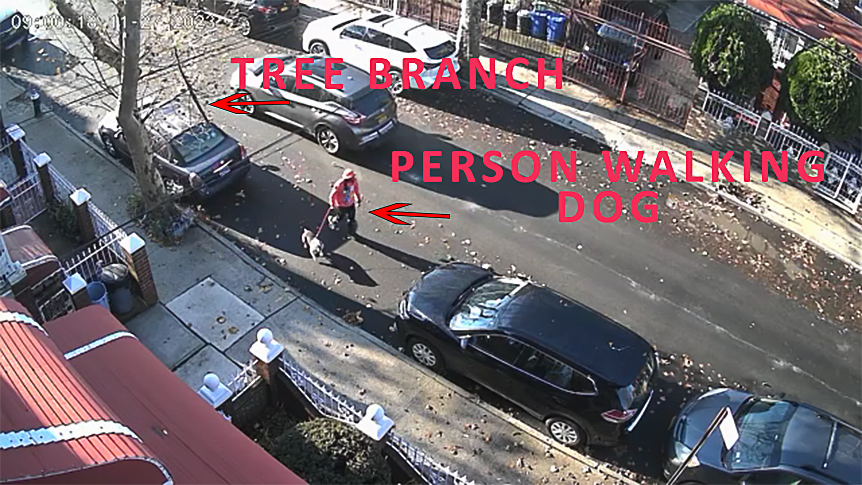
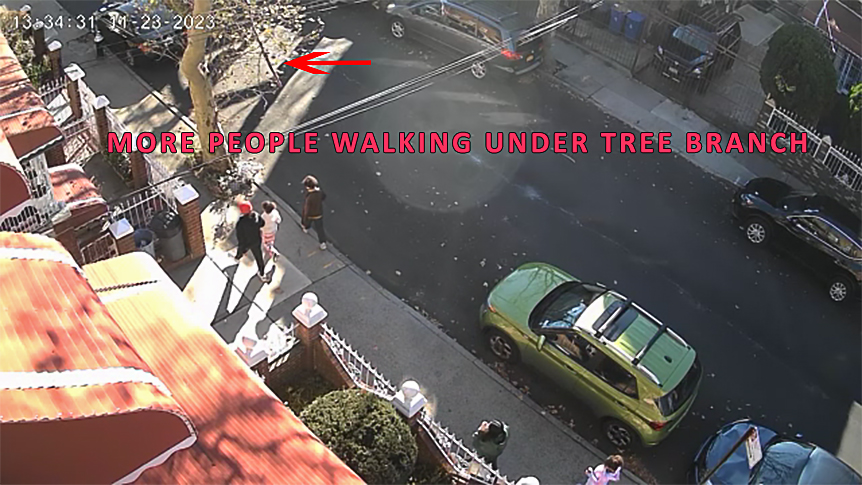

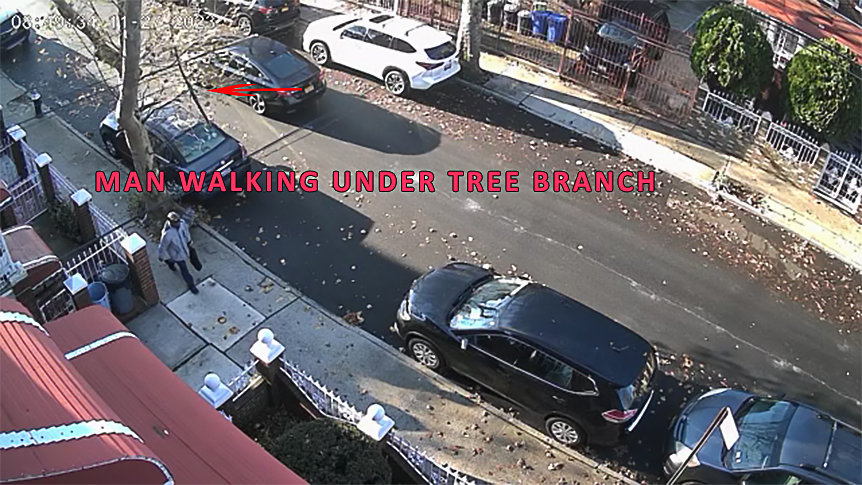
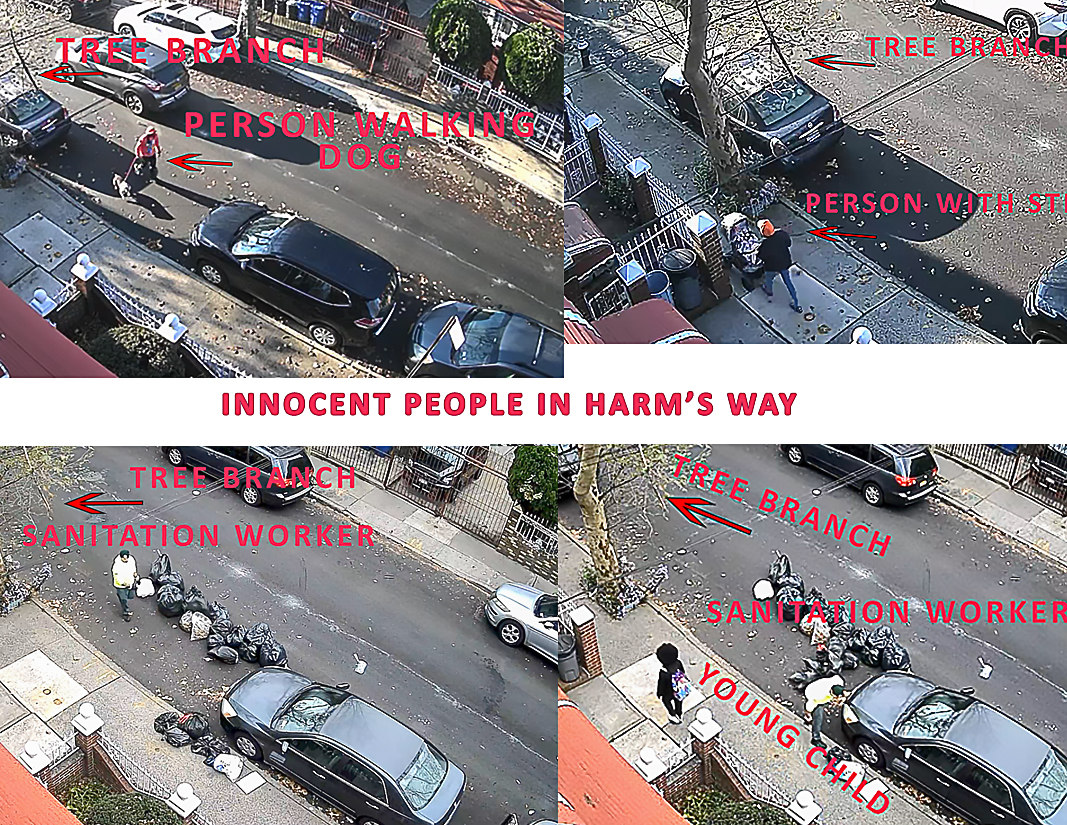
Branches Number 2 and 3
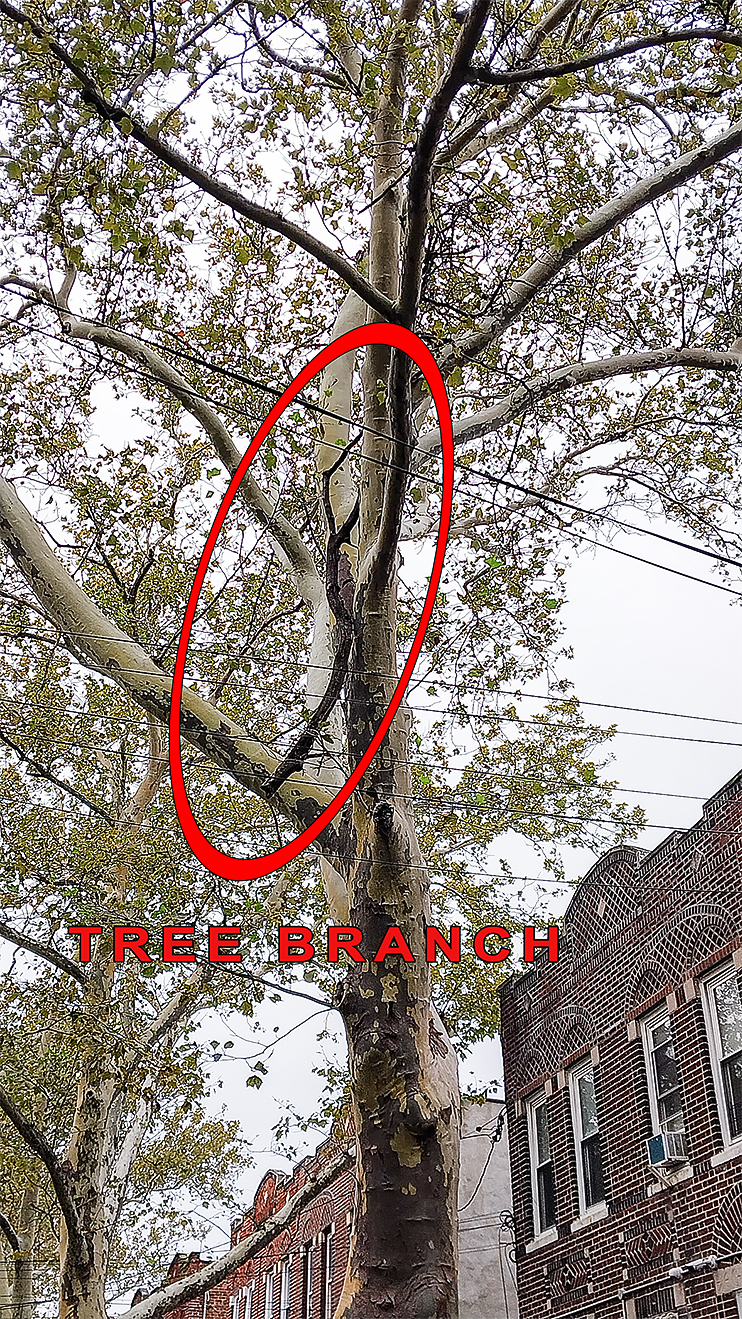
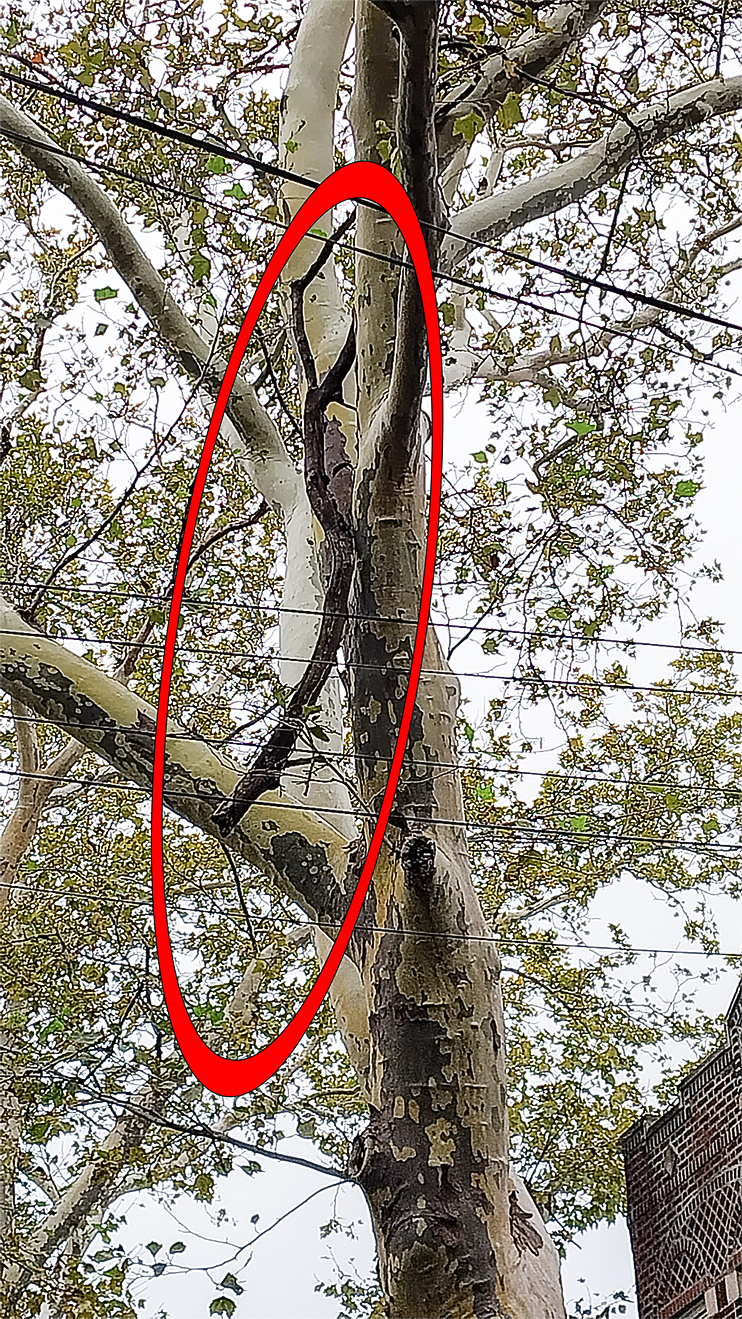
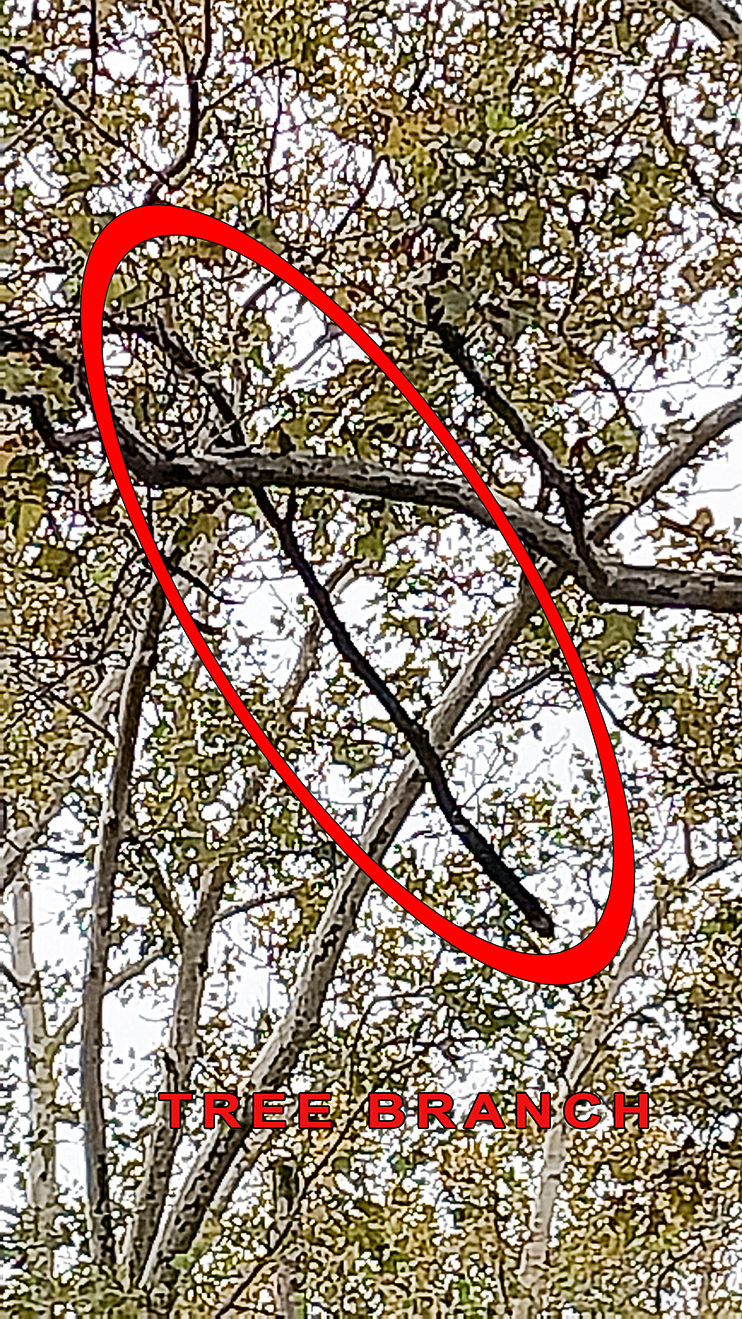
One To Go
Branch 5 Is Still A Threat